
Dotfiles: why and how
Working on someone else's machine feels like writing with their hands—common commands fail, shortcuts vanish, and everything feels wrong. Dotfiles transform this by capturing your accumulated workflow optimisation in version-controlled configuration files, turning any terminal into your terminal within minutes rather than days of manual reconfiguration.
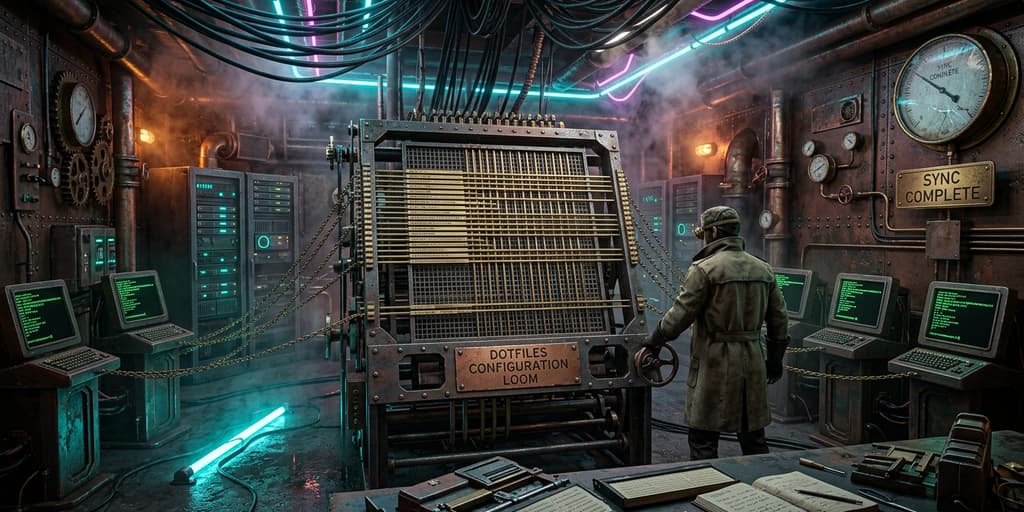
I still remember the first time I sat down at a colleague's machine to help debug an issue. The terminal opened, and everything felt wrong. The prompt looked different. Common commands I'd type automatically weren't there. My carefully crafted Git aliases didn't exist. Even basic things like ll for a detailed directory listing threw "command not found" errors. It was like trying to write with someone else's hands.
That visceral discomfort illustrates what dotfiles actually represent. They're not just configuration files—they're the accumulated muscle memory of how you work, codified into text files that begin with a dot.
What are dotfiles?
Dotfiles are the configuration files of Unix-like systems, hidden by a preceding dot that renders them invisible to the casual ls command. From environment variables in .bashrc to system aliases in .bash_aliases, these files determine the look, feel, and operational behaviour of your tools and terminal. They transform generic software into a personalised computing environment that mirrors how you think and work.
These files configure shells (bash, zsh), editors (vim, emacs, nano), version control systems (git), and dozens of other tools. Each dotfile reflects user preferences—whether that's a simple colour theme for a text editor or complex scripts that automate daily tasks. For developers, sysadmins, and power users, dotfiles become essential infrastructure, the difference between feeling at home at the terminal and feeling like you're wearing someone else's shoes.
Typical uses of dotfiles
The shell configuration file—.bashrc for Bash or .zshrc for Zsh—becomes the foundation of your terminal experience. This is where you define the shortcuts, functions, and environment variables that make the command line feel like an extension of your thought process rather than a series of commands to remember.
Here's a comprehensive .bashrc that demonstrates the range of what's possible:
# .bashrc

# If not running interactively, don't do anything
[[ $- != *i* ]] && return

# Aliases
# Shortcuts for commonly used commands
alias ll='ls -alF'
alias la='ls -A'
alias l='ls -CF'

# Change Prompt
# \u adds the username of the current user
# \h adds the hostname up to the first '.'
# \w adds the current working directory
PS1='\u@\h:\w\$ '

# Enable color support of ls and also add handy aliases
if [ -x /usr/bin/dircolors ]; then
    test -r ~/.dircolors && eval "$(dircolors -b ~/.dircolors)" || eval "$(dircolors -b)"
    alias ls='ls --color=auto'
    #alias dir='dir --color=auto'
    #alias vdir='vdir --color=auto'
fi

# Add bin directory to PATH if it exists
if [ -d "$HOME/bin" ] ; then
    PATH="$HOME/bin:$PATH"
fi

# History control
# Don’t put duplicate lines or lines starting with space in the history.
HISTCONTROL=ignoreboth

# Increase history size
HISTSIZE=10000
HISTFILESIZE=20000

# Check the window size after each command and, if necessary,
# update the values of LINES and COLUMNS.
shopt -s checkwinsize

# If set, the pattern "**" used in a pathname expansion context will
# match all files and zero or more directories and subdirectories.
#shopt -s globstar

# Autocomplete enhancements
if [ -f /etc/bash_completion ] && ! shopt -oq posix; then
    . /etc/bash_completion
fi

# Custom functions
# A sample function to quickly navigate to your coding directory
function code() {
    cd ~/coding
}

# Load custom scripts if they exist
if [ -f ~/.bash_aliases ]; then
    . ~/.bash_aliases
fi

if [ -f ~/.bash_custom ]; then
    . ~/.bash_custom
fi

# Environment variables
# Example: Setting EDITOR variable to vim
export EDITOR=nano

# Enable programmable completion features (you don't need to enable
# this, if it's already enabled in /etc/bash.bashrc and /etc/profile
# sources /etc/bash.bashrc).
if ! shopt -oq posix; then
  if [ -f /usr/share/bash-completion/bash_completion ]; then
    . /usr/share/bash-completion/bash_completion
  elif [ -f /etc/bash_completion ]; then
    . /etc/bash_completion
  fi
fi
This .bashrc file:
- Checks if the shell is interactive.
- Sets up a few alias commands to make ls commands more useful and convenient.
- Customizes the shell prompt to show the username, hostname, and current directory.
- Enables colour support for ls and its aliases if it's available.
- Adds a personal bin directory to the PATH if it exists, so you can run scripts in there easily.
- Sets up history settings to ignore duplicates and commands starting with spaces and increases the history size.
- Makes the shell check the window size after each command, which can help ensure formatting is correct.
- Enables advanced globbing features if desired.
- Sources the bash_completion file if it exists for smarter tab completion.
- Defines a custom function named code that quickly changes the directory to a coding workspace.
- Loads additional alias and custom scripts if they exist.
- Sets the default editor to nano.
- Optionally enables programmable completion features.
Each of these configurations compounds over time. You add an alias for a command you type frequently. You adjust your history settings after losing important commands. You customise your prompt to show git branch information. Individually, these changes are small. Collectively, they represent hundreds of hours of accumulated workflow optimisation.
Text editors follow the same pattern. The default configuration for nano, vim, or emacs serves the general case reasonably well, but your specific use case benefits from customisation. For nano users, a .nanorc file transforms the editor from basic to genuinely useful:
# .nanorc

## Interface
set mouse
set smarthome
set smooth
set softwrap
set suspend

## Files
set autoindent
set backup
set backupdir "~/.nano_backups/"
set multibuffer

## Editing
set matchbrackets "(<[{)>]}"
set tabsize 4
set tabstospaces

## Search
set ignorecase

## Shortcuts
bind ^S savefile main
bind ^Q quit all

## Display
set linenumbers
set constantshow

## Colors and Syntax Highlighting
include "/usr/share/nano/*.nanorc"

## Enable all file includes
set include
This .nanorc configuration:
- Enables the use of the mouse within the editor.
- Sets a smooth scrolling.
- Turns on soft wrapping of overlong lines.
- Allows you to suspend nano with ^Z.
- Sets up automatic indentation for new lines.
- Configures backup files to be created before overwriting files.
- Sets a specific backup directory where all backup files will be stored.
- Allows having multiple buffers open at once.
- Sets brackets to be highlighted as matching pairs.
- Configures tabs to be converted to spaces with a width of 4 characters.
- Makes search case-insensitive, which is especially useful in programming.
- Binds Ctrl+S to save the file and Ctrl+Q to quit, which are common shortcuts in other applications.
- Enables line numbers and constant display of certain information (like cursor position).
- Includes syntax highlighting for a variety of file types by including all .nanorc files in /usr/share/nano/.
- Allows the inclusion of other .nanorc files, which is useful if you want to break out configurations.
Version control configuration carries particular weight for developers. Your .gitconfig defines not just how Git behaves, but your identity in every commit across every project. Getting this right once means never having to configure Git again on any machine you work on:
[user]
    name = John Doe
    email = john@doe.com
    signingkey = AAAAAAAA

[alias]
    co = checkout
    br = branch
    ci = commit
    st = status
    unstage = reset HEAD --
    last = log -1 HEAD
    ll = log --graph --abbrev-commit --decorate --format=format:'%C(bold blue)%h%C(reset) - %C(bold green)(%ar)%C(reset) %C(white)%s%C(reset) %C(dim white)- %an%C(reset)%C(auto)%d%C(reset)'
    lola = log --graph --decorate --pretty=oneline --abbrev-commit --all

[core]
    excludesfile = ~/.gitignore_global
    editor = vim # or your preferred editor

[color]
    ui = auto

[commit]
    template = ~/.gitmessage.txt

[merge]
    tool = vimdiff

[push]
    default = simple

[diff]
    tool = vimdiff
    subModule = log

[filter "lfs"]
    clean = git-lfs clean -- %f
    smudge = git-lfs smudge -- %f
    process = git-lfs filter-process
    required = true

[credential]
    helper = cache --timeout=3600

[rebase]
    autosquash = true
This .gitconfig:
- Sets your user name and email, which are used for committing changes.
- Defines a GPG key for signing commits.
- Includes a series of aliases for common Git commands to save keystrokes.
- Points to a global .gitignore file where you can list rules for ignoring files across all repositories on your system.
- Sets your preferred text editor for writing commit messages.
- Enables coloured output in the terminal for better readability.
- Specifies a commit message template file to standardize commit messages.
- Configures vimdiff as the default tool for merging and viewing diffs, which can be replaced with your preferred diff tool.
- Sets the push behaviour to 'simple', which is usually the desired and safest option.
- Includes configuration for Git Large File Storage (LFS), a system for managing large files with Git.
- Uses the credential helper with a timeout to temporarily store your credentials in memory.
- Enables automatic detection of squashed commits during a rebase.
The pattern extends to session management (.tmux.conf), SSH connections (.ssh/config), and virtually every command-line tool you use regularly. Each dotfile represents accumulated knowledge about how you work, preserved in a format that survives system reinstalls, hardware upgrades, and job changes.
Why dotfiles matter
I've watched developers spend three days setting up a new machine, manually reconfiguring everything from scratch because they never bothered to maintain dotfiles. They'd forgotten half the customisations they'd made to their previous setup. The aliases they'd relied on daily were gone. The Git configuration that made rebasing smooth was missing. They were effectively starting over, relearning their own workflow.
The value of dotfiles becomes obvious the moment you need to set up a new machine or work on a remote server. Without dotfiles, you're configuring everything manually, trying to remember settings you established years ago, likely getting them wrong. With dotfiles, you clone a repository, run a setup script, and within minutes your environment matches muscle memory.
Beyond portability, dotfiles provide version control for your workflow itself. You can track when you added specific configurations, revert changes that didn't work, and share useful patterns with colleagues. The dotfiles become documentation of how you've optimised your environment over time.
How to start creating personal dotfiles
The simplest way to begin is by customising the shell configuration you're already using. Most Unix-like systems come with a .bashrc or .zshrc file by default, even if it's empty or minimal. Start there.
Open your shell configuration file in a text editor:
nano ~/.bashrcIf the file is empty or doesn't exist yet, you can copy the comprehensive example provided earlier in this article. But there's no need to start that elaborate. Begin with something simple and useful—a single alias that solves an immediate problem you have. For instance, if you frequently check your public IP address:
alias ip="dig +short myip.opendns.com @resolver1.opendns.com"Save the file (Ctrl + X, then Y to confirm, then Enter). Now you have a working dotfile. One alias. That's the starting point.
The complexity comes from how Bash loads its configuration files, which differs between login shells and interactive shells. To ensure your .bashrc settings apply consistently, you typically source it from your .bash_profile. This matters because login shells (like when you SSH into a server) read .bash_profile, whilst interactive shells (like opening a new terminal tab) read .bashrc. Sourcing one from the other ensures consistency.
If you've made changes to .bashrc, open your .bash_profile:
nano ~/.bash_profileAdd the following line to the end of the .bash_profile:
if [ -f ~/.bashrc ]; then
  source ~/.bashrc
fi
This checks whether .bashrc exists and, if it does, sources it. Sourcing means executing the file in the context of the current shell, making all its configurations available.
Save the file (Ctrl + X, Y, Enter). Now apply the changes to your current shell session:
source ~/.bash_profileThe alternative is closing and reopening the terminal, or logging out and back in. Either works, but sourcing is faster.
Your configurations now apply consistently. Every new shell session—whether you're logging in via SSH or opening a terminal tab—will load your customisations.
Where to store dotfiles
The traditional approach places dotfiles directly in your home directory. That works, but it creates clutter and makes version control awkward. You'd be version controlling your entire home directory, which includes temporary files, application data, and countless things you don't want in a repository.
The solution is organising dotfiles in a dedicated directory—typically ~/dotfiles—and creating symbolic links from there to the locations where applications expect to find them. This centralises management, enables version control of just the configurations, and keeps your home directory clean.
Create the dotfiles directory:
mkdir ~/dotfilesMove your existing dotfiles into this directory:
mv ~/.bashrc ~/dotfiles/.bashrc
mv ~/.nanorc ~/dotfiles/.nanorc
mv ~/.gitconfig ~/dotfiles/.gitconfig
With your configurations centralised in ~/dotfiles, create symbolic links back to your home directory where applications expect to find them. Symlinks act as shortcuts—applications read the file in your home directory, but that file is actually just a pointer to the real file in ~/dotfiles.
Before creating symlinks, ensure the target locations in your home directory are clear. If .bashrc already exists at ~/.bashrc, back it up and remove it, otherwise the symlink creation will fail.
Create the symlinks:
ln -s ~/dotfiles/.bashrc ~/.bashrc
ln -s ~/dotfiles/.nanorc ~/.nanorc
ln -s ~/dotfiles/.gitconfig ~/.gitconfig
The ln command creates the link. The -s flag specifies a symbolic link (as opposed to a hard link). The first path is the source—the actual file in ~/dotfiles. The second path is where the symlink appears—the location where applications expect to find the configuration.
Applications now read from ~/dotfiles without knowing it. You edit the file in ~/dotfiles, and the changes immediately apply because the symlink makes them appear in the expected location.
How to keep dotfiles in a Git repository
The real power of dotfiles comes from version controlling them. With Git, you can track every change, revert mistakes, and clone your entire environment to new machines with a single command. This transforms dotfiles from convenient configurations into portable, versioned infrastructure.
Initialise a Git repository in your dotfiles directory:
cd ~/dotfiles
git init
This creates a .git directory containing Git's metadata. Your dotfiles directory is now a Git repository.
Add your files to the staging area:
git add .Create the initial commit:
git commit -m "Initial commit"Your dotfiles are now version controlled locally. To back them up remotely and enable cloning to other machines, create a repository on GitHub (or your preferred Git hosting service) and link it as a remote. Replace the URL below with your actual repository URL:
git remote add origin https://github.com/johndoe/dotfiles.gitPush your dotfiles to the remote repository:
git push -u origin mainThe -u flag sets the upstream tracking relationship, which means future pushes and pulls can omit the remote and branch names—just git push or git pull will work.
Your dotfiles are now backed up remotely. When you get a new machine or need to configure a server, clone the repository, create the symlinks, and your environment is restored. What once took hours or days now takes minutes.
Essential dotfiles worth maintaining
Beyond the shell and Git configurations we've covered, several other dotfiles prove valuable for daily work. Each addresses specific pain points that become obvious once you've experienced a well-configured environment.
.aliases centralises command shortcuts separately from your shell configuration:
alias ll='ls -lah'
alias gs='git status'
.curlrc defines default options for curl, eliminating repetitive flags:
user-agent = "Mozilla/5.0 (compatible; MyCurlBot/1.0)"
--color
.editorconfig maintains consistent coding styles across editors and team members:
root = true

[*]
indent_style = space
indent_size = 4
end_of_line = lf
charset = utf-8
trim_trailing_whitespace = true
insert_final_newline = true
.exports centralises environment variables that apply across your entire session:
export PATH="/usr/local/bin:/usr/bin:/bin:/usr/sbin:/sbin"
export JAVA_HOME="/usr/lib/jvm/default-java"
.functions defines custom shell functions for complex operations you perform repeatedly:
function mkcd() { mkdir -p "$@" && cd "$_"; }
function extract() { tar -xzf "$1" && cd "$(basename "$1" .tar.gz)"; }
A minimal .gitconfig example (the comprehensive version appears earlier in this article):
[user]
    name = John Doe
    email = johndoe@example.com
[alias]
    co = checkout
    br = branch
    ci = commit
    st = status
.gitignore (global) prevents common junk files from being committed across all repositories:
*.log
node_modules/
.DS_Store
.inputrc configures readline behaviour, affecting how tab completion and history search work:
set completion-ignore-case on
set show-all-if-ambiguous on
.zshrc serves the same purpose as .bashrc but for Zsh users:
export PATH=$HOME/bin:/usr/local/bin:$PATH
autoload -U compinit && compinit
Brewfile works with Homebrew to define all your installed packages, making machine setup reproducible:
tap "homebrew/cask"
brew "bat"
brew "caddy"
brew "cloc"
Each of these dotfiles represents a specific pain point solved. You don't need all of them immediately. Start with the configurations that affect your daily work—shell, Git, and your primary editor. The rest accumulate organically as you encounter friction worth automating away.
The difference between working on a machine with your dotfiles and working on one without becomes visceral remarkably quickly. Commands you type automatically fail. Shortcuts you rely on don't exist. Git commits use the wrong identity. The prompt looks wrong. Everything feels slightly off, like wearing shoes that are half a size too small.
Dotfiles transform this. They capture the accumulated optimisation of your workflow—the aliases that save keystrokes, the configurations that prevent mistakes, the functions that automate tedious operations. They represent hundreds of hours of refinement, preserved in text files that begin with a dot.
Start simple. One configuration file. One alias. Build from there as you encounter friction. Version control everything. Within months, you'll have a portable environment that follows you across machines, turning any terminal into your terminal.
Published on:
Updated on:
Reading time:
11 min read
Article counts:
67 paragraphs, 2,158 words
Topics
TL;DR
Developers without dotfiles spend three days manually reconfiguring new machines, forgetting half the customisations they'd relied on daily—the aliases, the editor configurations, the Git settings that made workflows smooth. The accumulated muscle memory vanishes with every hardware upgrade or job change. Version-controlled dotfiles solve this by capturing workflow optimisation in text files that survive system reinstalls and follow you across machines. The approach centralises configurations in a dedicated directory with symbolic links to expected locations, then version controls everything. Start with a single alias solving immediate friction, build organically as you encounter pain points. Within months you've transformed days of setup into minutes of cloning a repository, turning any terminal into your terminal whilst preserving years of accumulated refinement.